Friday, August 27, 2010

Upload Original Size JPEGs to Blogger

If you're familiar with compressing your own JPEG images for the web, chances are you've noticed Blogger's annoying habit of compressing uploaded images even further.  The results aren't pretty and waste all the time you've spent optimizing your images.

You could upload images in PNG format but PNG files can be much larger than JPEGs and will eat up both more bandwidth and free image-hosting space.

In order to upload JPEGs with their original compression you'll have to sidestep Blogger's image uploader and go straight to Picasa's downloadable uploader.  (Picasa is Google's image-hoster which stores all the images you upload to Blogger).

This article describes how to upload original compression JPEGs to Picasa and then display them in your blog.

(Update: You may also want to try disabling Blogger's auto-enhance feature for photos.)

1.)  Download Google's Picasa

As mentioned above, Picasa is Google's image-hosting service which hosts all the images you upload to Blogger.  In order to see all the images you've ever uploaded to your blog, you can sign in to your Picasa account (same login as your Google account) and click on the album named after your blog.

To upload JPEG images with their original compression, you will have to download and install the free Picasa photo editing software (link).

After installing, Picasa will want to index the images on your computer.  This could take time so be prepared to wait a while before proceeding.  Picasa will probably still be useable while indexing, however.

2.)  Upload Images with Picasa

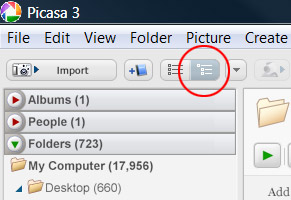
If you have trouble understanding Picasa's folder file browsing structure, you can click the button for showing a more typical tree structure:


Browse to the image you want to upload and then double-click it.

If you don't find the file you're looking for then you might have to browse for the file manually (this means Picasa didn't find the file when indexing your hard drive).  Use 'Add File to Picasa...' from the Picasa 'File' menu to browse for the file using the standard file browser for your operating system.

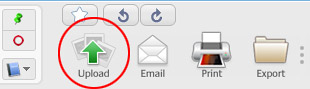
After you've double-clicked the image you want to upload you'll notice a set of commands along the bottom of the program window.  Click the 'Upload' icon:

(Update: This icon has changed to a 'Share on Google+' icon in more recent versions of Picasa.)


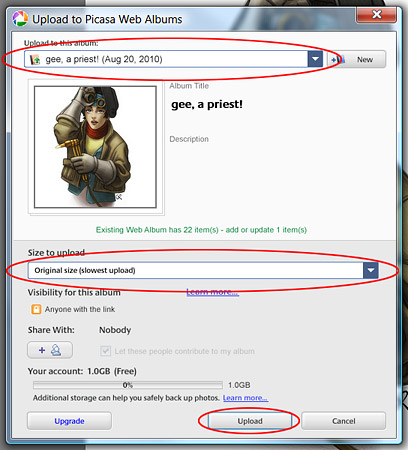
From the first drop-down list in the new dialog box which opens, choose the Picasa web album named after your blog.  For 'Size to upload', choose 'Original size (slowest upload)',  and then click 'Upload'.


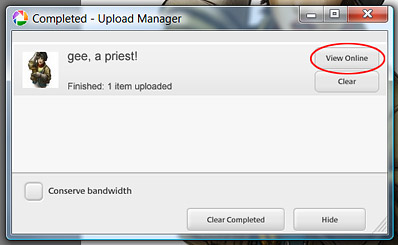
After the image has uploaded, click the 'View Online' button to be taken directly to your Picasa web album.

(Update: In newer versions of Picasa, the 'View Online' button might take you to your Google+ page. You can still go to your Picasa web album by going to https://picasaweb.google.com/)


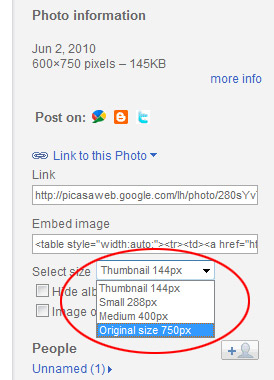
From the Picasa web album page, click on 'Link to this Photo' to open image linking options.  From the 'Select size' drop-down, choose 'Original size'.  (Note that the original size will only be displayed as an option if the image's largest dimension is less than or equal to 800 pixels.  There is still a way to display larger images, however, which I will explain later.)


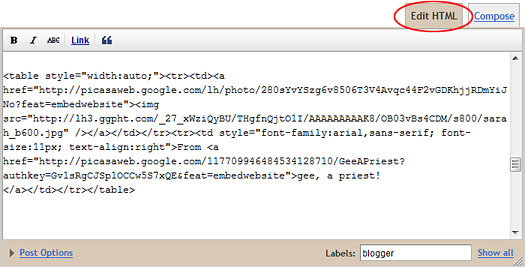
Click in the 'Embed image' field to select the text, then press 'Ctrl+C' to copy the code to your clipboard.  In your blog post editor, switch to 'Edit HTML' mode and then paste the code ('Ctrl-V') where you would like the image to appear.


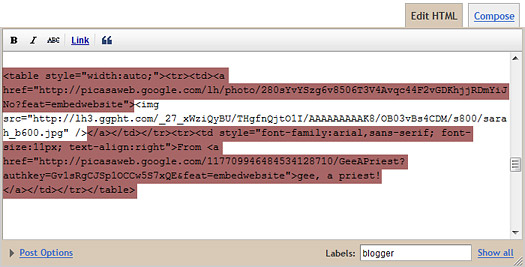
To simplify the code, you can delete the tags I've highlighted below. All you really need is the content within the <img> tag.


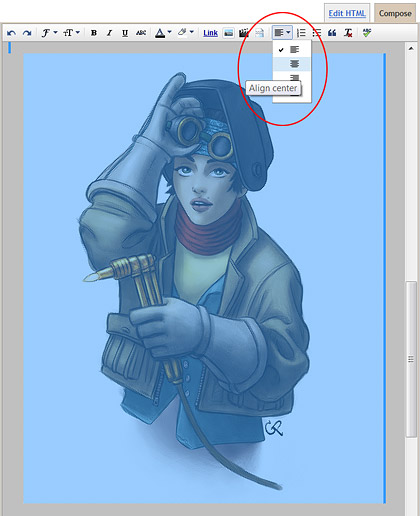
If you wish to center the image, switch back to 'Compose' mode, drag over the image to select it, and then change the alignment to 'center'.


3.)  Linking to Images larger than 800 pixels.

Usually, 800 pixels is plenty big enough for images displayed on a blog.  However, if you have an image with a vertical dimension bigger than 800 pixels, or you just want to show a larger image, you can modify the code that you cut and paste from your Picasa album to show images up to 1600 pixels per side.

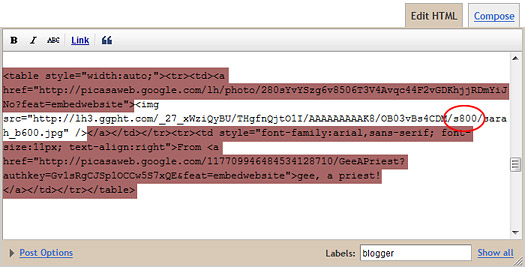
The portion of code preceded by an 's', like in '/s800/', represents the max thumbnail size for the image.  This means that the image's largest side must be smaller than 800 pixels, or else the image will be shrunk to fit.

If you change the number after the 's' to '1600', then '1600' will become the new max thumbnail size, and any image with a side smaller than 1600 pixels will display at original size:


Conclusion:

Though Blogger tries to simplify posting images to blogs, it also overly compresses JPEG images, complicating things for people that prefer to compress their own files.  By allowing the alternative PNG format, Blogger also tends to encourage these users to upload images with a larger file size, which can use up more bandwidth and image-hosting space.  Fortunately, the free Picasa photo-editing software offered by Google can be used to upload original quality JPEGs which, with a little HTML editing, can be displayed in high-quality on a blog. 

Wednesday, August 25, 2010

Wacom Cintiq Tips and Suggestions

Wacom CINTIQ 21UX (DTK2100) 21-Inch Pen Display - Graphics Monitor with Digital Pen

Considered one of the Holy Grails of digital art tools by some, the Wacom Cintiq can be a joy to work with and often improves productivity when compared to regular pen tablets. The one-to-one pen-to-screen ratio and direct interaction make for a much more natural experience, particularly for those with a traditional art background.

Like all tools, however, a Cintiq requires some adjusting to. The glass starts off sticky, the screen can get hot, your hand covers up menus, and fingerprints collect on the screen.

Here are some tips I've found for addressing those problems, as well as a few more suggestions to help get the most out of a Cintiq.

1.)  Get a Glove.

You may have heard about SmudgeGuard® while researching Cintiqs. Originally designed to prevent pencil smudging and graphite buildup on your hand, SmudgeGuard® has become popular with Cintiq owners because it prevents sweat and oils from your hand from building up on the Cintiq's screen, allowing your hand to glide smoothly and evenly over the glass. Wearing a glove also seems to alleviate discomfort caused by heat buildup from the LCD screen.


Before getting a SmudgeGuard myself, I used a cheap cloth glove which I cut up to serve the same purpose. The glove wasn't pretty but it got the job done.

2.)  Buy a Micro-fiber Cloth.

Despite wearing a glove, smudges and other marks will still work their way onto the glass. The safest and easiest way to wipe away smudges is with a micro-fiber cloth - a cloth with very fine synthetic fibers.

I recommend buying a micro-fiber cloth designed for camera lenses or computer screens, as they're designed to protect very expensive pieces of equipment.


Just make sure that no grit is on the cloth or the screen before you wipe it down, to prevent scratches.

3.)  Left-Handed Pointers for Right-Handed People.

One problem I noticed when first using my Cintiq was that the pen stylus covered up the default screen pointer for Windows.


You might think that a pointer would lose it's importance when using a Cintiq, but, due to the slight gap between the glass and the LCD, the distance between the pointer and the tip of your pen grows as you move towards the edges of the screen. This offset in position means that you cannot simply rely on the tip of your pen to know where you are clicking and must instead keep your eye on the pointer.

To relieve myself from having to lift my pen in order to see the screen pointer, I decided to download and install left-handed pointers from Microsoft's website (link). Now I always have a clear view of the pointer, no matter where my pen is positioned.


(It should be noted that the offset towards the edges of the screen has little effect when you are painting or modelling in a graphics program since you primarily work in the middle of the screen. The offset only affects menu selections for the most part.)

4.)  Drop-down Menu Positioning.

Similar to the pointer problem discussed above, the default direction that drop-down menus open can cause a problem for right-handed people when using a Cintiq (by default, drop-down menus open to the right, meaning they will appear beneath a right-handed person's hand).

Fortunately, if you have at least Windows Vista, you can change the direction that menus open by setting the 'Handedness' in the Tablet PC Settings (click 'Start', type 'Tablet PC Settings', then select it above). If you set the 'Handedness' to 'Right-handed' then the menus will appear to the left of your hand instead of underneath it (if you're right-handed).


Unfortunately, some programs, like Adobe Photoshop, seem to override the Tablet PC Settings for 'Handedness'. Most programs, however, will obey the setting.

5.) Manually Adjust the Pressure Sensitivity.

One of the best tips I've read for Wacom tablets in general is to manually adjust the pressure sensitivity of your pen to a lower maximum setting. Doing so means that you won't have to press as hard with your pen to reach full pressure. For a Cintiq, this means less worry about scratching the screen and less money spent buying new pen nibs (since they will wear down slower).

The newer drivers allow you to lower the maximum pressure to around 75%. To go even lower, you'll have to hack the preference file (I lower mine to around 50%). An article on how to manually adjust pressure sensitivity can be found here: http://cartoonwolf.livejournal.com/32779.html.

I've been using the same felt nibs that came with my pens for a few years now, since I use very little pressure when drawing.

6.)  Consider Buying an LCD Monitor Arm.

While the larger Cintiqs come with adjustable stands, even more comfort can be gained by purchasing a high quality LCD monitor arm. Monitor arms, like the Ergotron LX Desk Mount, allow a full range of movement, letting you easily push the monitor away, straighten it for typing, or lower it into your lap for sketching.

Ergotron LX Desk Mount LCD Arm 45-241-026

A good LCD arm may seem like a luxury but the comfort it affords can improve productivity by helping posture, allowing you to work comfortably for longer periods of time.

7.)  Make a Cover.

Assuming you have the original box for your Cintiq, you already have most of the materials to make a simple protective cover for it.


Using the pre-cut cardboard and paper that protected the screen in the box, I simply taped the paper to the cardboard and then made box corners out of index cards, which I then taped to the top corners of the cardboard.


Now I can easily cover the Cintiq when I'm not using it, protecting it from any careless horseplay in the room.

8.)  Consider Buying an Art Pen.

If you bought a Cintiq because you're trained in traditional art tools, chances are you'll like the Art Pen. Though steep in price, the Art Pen detects pen rotation, allowing for more dynamic and realistic brush strokes in programs like Painter, Photoshop, and Manga Studio. Photoshop's new Bristle Brushes, in particular, produce very real stroke variation when using the Art Pen.

Combined with the Cintiq and appropriate software, the Art Pen allows for probably the closest experience to real painting in the digital realm that you can get today. (I actually use my Art Pen more than my regular stylus. Note that the chisel tips are pretty much useless however - they don't fit tight enough to prevent rotating in the socket; the plain nibs are better.)

Conclusion:

Though a Wacom Cintiq is a big step up from a regular pen tablet, Cintiqs still have a few problems of their own which require adjusting to. Many of the tactile problems can be solved by wearing a soft glove, like the SmudgeGuard®, and on-screen problems such as pointers and drop-down menus appearing under your hand can be solved by changing Windows system settings.  A micro-fiber cloth is handy for cleaning the screen, and an LCD arm can improve productivity by helping posture.  To protect the Cintiq when not in use, a simple cover can be made from the original packaging, and adjusting the pressure sensitivity of your pen can save money on pen nibs. Finally, buying an Art Pen to get the most out of your Cintiq is worth consideration for those working in Painter, Photoshop, or Manga Studio.

Saturday, August 21, 2010

Photoshop CS5 Mixer Brush Tips and Tricks

(This is the first of two articles on the Mixer Brush that I've written.
The second can be found here.)

Having wrestled with Photoshop's new Mixer Brush in CS5 for the past few months, I've come to the conclusion that the new tool is indeed a great addition, however with many caveats.  Some of the problems are technical ones (such as painting in 8-bits/channel), others by design (not mixing with transparency).

Here are the biggest hurdles I've come across while working with the new Mixer Brush, and how I've overcome them for the time being.

1.)  Paint in 16-bits/channel.

This one stumped me for a long time.  No matter how intense my color choices, the Mixer Brush always seemed to produce muddy results.  The problem lay in the fact that the Mixer Brush wasn't actually painting with the color I had selected in the Color Picker.  Not until tackling an unrelated problem did I finally find the solution - the Mixer Brush only works properly in 16-bits/channel.

As can be seen in the pic below, the Mixer Brush never manages to build up to the actual color you have selected when painting in 8-bits/channel, no matter how many strokes you lay down.


When painting in 16-bits/channel, the Mixer Brush works just fine.

So the solution is easy - paint in 16-bits/channel!  To change any document to 16-bits/channel, select 'Mode>16 Bits/Channel' in the 'Image' menu.  You can also set the color depth in the 'New Document' dialog when creating a new document.

The only problem with this solution is that not all filters are available when working with 16-bit images, so expect to change the mode occasionally if you like using filters.

2.)  Paint in a wide-gamut RGB space or in Lab Color mode.

This is an optional but recommended solution to the limited color palette of Photoshop's default sRGB color space.  I mention this as an optional solution because the Mixer Brush, like real oil paint, can sometimes produce muddy results. Being able to pick more intense and saturated colors can help alleviate this problem.  I'm hesitant to discuss this issue too deeply however as it would require an explanation of color management, which is a headache for anyone.  Suffice it to say, even Adobe recommends working in Adobe RGB at the least.

If you do decide to try working in a wide-gamut RGB, or in Lab mode, don't forget to convert back to sRGB if you plan on displaying your image on the web.

(I'll discuss this point in finer detail in a future article.)

3.)  Use 'Copy/Paste Merged' instead of 'Sample All Layers'.

The 'Sample All Layers' feature of the Mixer Brush allows you to blend colors on a new layer, preserving color information on other layers.  Unfortunately, this feature also tends to slow down brush interaction dramatically.

I recommend using the 'Copy/Paste Merged' command (shortcut Ctrl+Shift+Alt+E) instead to copy the contents of all underlying layers onto a new layer.  This will allow you to paint on a copy of the other layers.  You can then adjust the opacity of the new layer and merge down when finished.  (If you have only one layer in the image, just duplicate the layer by dragging it down to the new layer button in the Layers Palette.  The 'Copy/Paste Merged' shortcut only works if more than one layer is present in the document.)

There really isn't any advantage to the 'Sample All Layers' feature other than reducing file size - a 'fringe' of color is created around your brush strokes, making most layer blend modes other than 'Normal' practically useless.  (It is possible to use many other layer blend modes with the Mixer Brush, however, as I explain in the next point.)

If you wish to 'Copy/Paste Merged' only certain areas of an image, you can select an area with the marquee tools and then manually select 'Copy Merged' and 'Paste' from the 'Edit' menu.

4.)  Using Layer Blend modes and blending with Transparency.

One of the major drawbacks of Photoshop's new Mixer Brush is that it doesn't blend with transparency, making the process of painting on layers a bit of a hassle.  Instead, Adobe opted for the 'Sample All Layers' feature discussed above.

However, the Mixer Brush can fake blending with transparency just fine using most layer blend modes, provided the layer is filled with the appropriate 'neutral' color.  A 'neutral' color is any color which appears transparent when using a certain blend mode.

Most layer blend modes have an associated neutral color, which (when filled with that color) will blend with the Mixer Brush as if the brush were blending with transparency.

To easily fill a new layer with a neutral color appropriate to it's blend mode, hold 'Alt' while pressing the 'New Layer' button in the Layers Palette.  In the 'New Layer' dialog, select a blend mode.  If that blend mode has a neutral color, the option to fill the layer with that color will become active.  Simply select the option to fill the layer and then click 'OK'.


I find that using Actions to create layers with blend modes I use often can save a lot of time. You can also fill the layer with it's neutral color, color code the layer, and name the layer all in one action (such as creating a blue layer named 'Multiply Layer').

For easy reference of Layer Blend modes and their respective neutral colors, I created this chart:


5.)  Set a shortcut key for Loading/Unloading Color.

The Mixer Brush also makes a great blending brush.  Normally, to turn the Mixer Brush into a straight blending brush you have to toggle off the 'Auto-Load' button in the Tool Options Bar.  However, a shortcut key can be assigned to make the task quicker.

In the 'Tools' section of the 'Keyboard Shortcuts' dialog box (opened by selecting 'Keyboard Shortcuts...' in the 'Edit' menu) select 'Toggle Mixer Brush Auto-Load' near the end of the list and then set a shortcut key:


Now the Mixer Brush can be toggled from a paintbrush to a blending brush simply by pressing that key.

6.)  Use Scatter Count settings to strengthen Bristle Brushes.

The new Bristle Brushes in CS5 are a great addition, expecially if you have a Wacom tablet and a rotation-sensitive Art Pen.  Adjusting them for use with the Mixer Brush can be tricky however, especially if you want a bolder stroke without too much bristle thickness.

One way I've found to increase brush opacity (while keeping bristle thickness to a minimum) is to increase the Scatter Count of the brush.


A Count setting higher than '2', though, might slow down your brush's interaction, so be careful when using this option.

7.)  The Wetness slider works better with Non-Bristle Brushes.

Although the new Bristle Brushes in CS5 work fairly well with the new Mixer Brush, I've found that the Wetness property of the Mixer Brush works far better with normal brush types.  At low settings, the Wetness slider still has a very wet effect with many Bristle Brush settings.


For this reason, it's still worth your time to try using the Mixer Brush with regular brush types if you want a subtler blending effect.

8.)  Height Textures can add greater pressure-sensitivity.

While the Mixer Brush lacks an opacity setting, experimenting with Height Textures can add a great deal more subtlety to your strokes.


By setting the Brush Texture mode to 'Height' and the 'Depth Jitter Control' to 'Pen Pressure', you can simulate how real paint interacts with the grain of your canvas; the heavier the stroke, the greater the penetration.


Using very low 'Depth' settings, you can effectively simulate drybrushing.  And by inverting the texture, you can simulate thin paint puddling into the grain of the canvas.

The only problems I've found with adding a Height Texture to a brush are a slight performance hit, and the fact that the settings seem to vary their effect slightly if you change the brush's original size by a large amount.

9.)  Using a Round Brush with the Mixer Brush.

If you prefer using round brushes for your painting, then you've probably noticed that they don't work very well with the new Mixer Brush.  I've found that certain brush settings and brush presets can help alleviate the problem, however.

First, to prevent stepping, Brush Tip Shape 'Spacing' should be set relatively low (preferably 5% or lower):


The real problem, though, has to do with the default round brush's Tip Shape.  The default round brush has a completely black Tip Shape, meaning you'll have a hard time laying down light strokes since the Mixer Brush has no opacity setting.  You could lower the Flow setting but I've found this can produce undesirable color shifts and doesn't allow you to mix to full color in a single stroke.

The solution I've found is to make lighter Brush Tip Shapes, like the one shown below:


Of course, the downside to this method is that you won't be able to change brush hardness unless you make several versions at various levels of hardness, since only the default Photoshop round brush can change hardness using a slider.

Conclusion:

Though I've had a heck of a time making the new Mixer Brush in Photoshop CS5 work for me, I feel that I've successfully tackled most of the issues which plagued me at the start.  Hopefully, Adobe will address many of these issues in the next version of Photoshop, especially the ones dealing with transparency, color depth, and bristle brush wetness.

For more tips on using the Mixer Brush, see my follow-up article: More CS5 Mixer Brush Tips.

Thanks for reading! :)

p.s. Eventually, I plan to make some of the brushes I've made with the Mixer Brush available for download.  I just need to find a suitable (and preferably free) webhost first.

For those interested, John Derry has a set available for purchase.